

Alarms
Similar to an alert, an alarm is related to one variable and allows users to be notified when data point or a predefined calculation goes above or below a specified threshold.
The alarms detection is designed to evaluate either data points streams having (near) real-time and monotonically increasing timestamps (threshold Alarms) or aggregated values over periods (period alarms). The alarm state is evaluated either every time a data points is written to the variable (DataPoint-driven) or at scheduled points in time (Scheduled-driven)
An alarm can be 'Acknowledged' to notify the system that a user saw the alarm state. This does not interfere the alarm state (Present/Not present).
Threshold Alarms
Threshold Alarms have the following characteristics:
Set and Reset thresholds that change the alarm state respectively to 'present' or 'not present' when the last variable data point is above or below the threshold .
Data points with values between Set and Reset thresholds (i.e. not crossing the thresholds) will affect the alarm state.
An alarm is triggered only when a state change occurs. Multiple consecutive data points that cross the 'set' threshold will only trigger the alarm once.
A Binary alarm can be defined: the thresholds will be 1 and 0.
Late data points will not be evaluated if more than two data points has arrived before them.
Period alarms
Period alarms have the following characteristics:
- A reference and a compare period
- A compare operator
- An aggregation function for each period
- A value to compare against the difference between the reference period aggregation and the compare period aggregation
- A trigger schedule (period alarms can't be triggered by incoming data points)
Alarm types, thresholds types and frequency types
Each alarm has the following properties:
- A type: Binary or Threshold
- A threshold type: High or Low
- A Set and a Reset threshold value
- A frequency type: raw, rolling or scheduled
Threshold types and values
The threshold type and the Set/Reset values, allow the system to assess the alarm and decide if a change of state should be made when data is received:
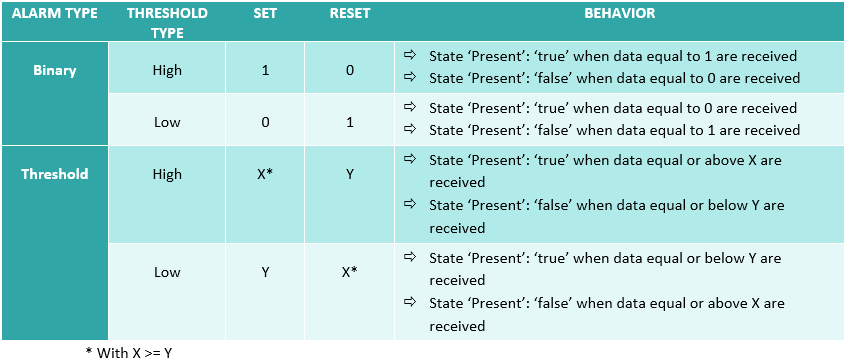
With a 'High' threshold type, the data will set the alarm to a 'present' state if the value of the data is equal or above the Set Value. The alarm will be in an 'not present' state when the data received is equal or below the 'Reset' Value.
On the contrary, a 'Low' threshold type will trigger a 'present' state for the alarm when the data is equal or below the Set value and an 'not present' state when the data is equal or above the 'Reset' value.
Alarm types
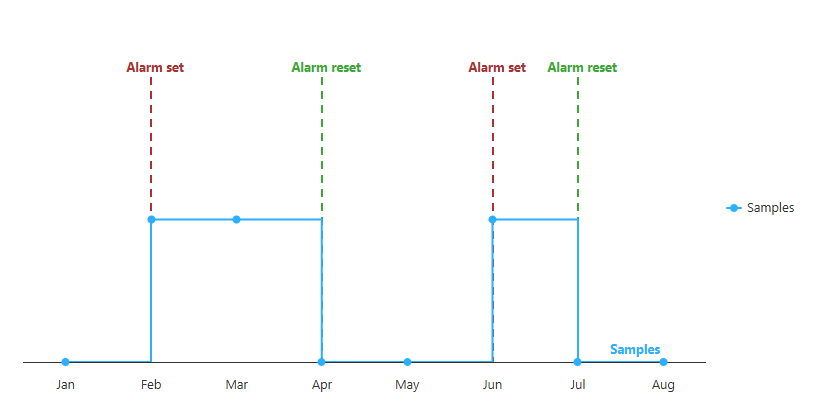
Binary
A binary alarm is suitable when the variable's data is likely 1 or 0. In this case, the Set and Reset values will be 1 and 0.
Threshold
A threshold alarm is suitable when variable's data is any float value. Such alarms may have different Set and Reset values, allowing to define a hysteresis.
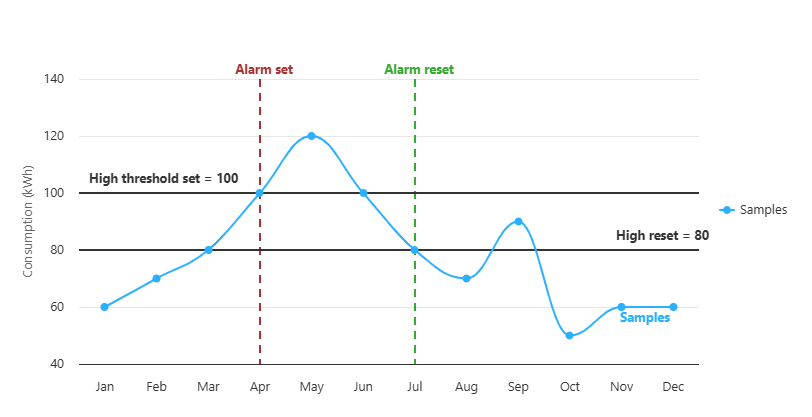
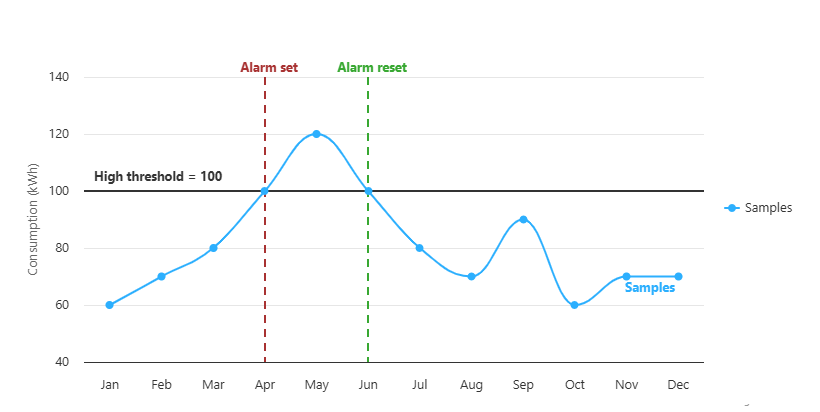
When Set and Reset values are identical, a single value is used to check the alarm state.
We can summarize alarm and threshold types like this:
Period comparison
This type of alarm allows comparing aggregated value of the variable's data points over 2 periods, apply a comparison operator between the aggregated values and set/reset the alarm according to comparison result.
A typical use of such an alarm is to check if the average consumption of a period is greater than the average consumption of the previous comparable period.
Learn more about Alarms: period comparison.
Frequency types
Insights supports 3 frequency types:
- Raw: in this mode, Verity will validate the value of every datapoint against the Set and Reset values.
- Rolling: in this mode, for each datapoint, Verity will validate the aggregated value of a specified period preceding and including the datapoint.
- Scheduled: in this mode, Verity will validate the aggregated value of a specified period at a specified time.
Tip
Learn more about ‘Alarms: frequency types’.
Alarm States
An alarm has 5 possible states:
- Present: the set threshold value was crossed
- Not Present (present: false): the reset threshold value was crossed
- Acknowledged: the alarm is either present or not present, and a user has notified to the system than this state has been seen.
- Inhibited: the alarm is disabled
- Uncertain: the system doesn't know if the alarm is present or not. This 'uncertain state' is used when an alarm has never been 'present' or after the alarm has been disabled and then enabled.
Change of state
The following diagram details the possible states flow:
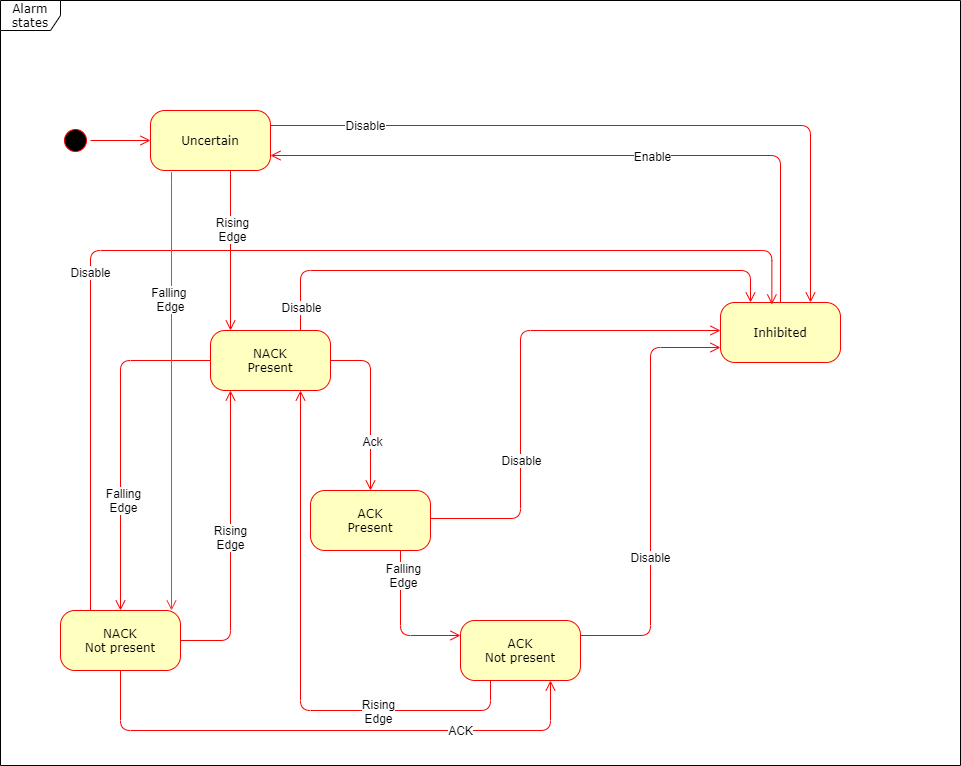
The state of rising edge means that a data which matches with the Set value has been received.
A falling edge means that a data which matches with the Reset value has been received.
If a data received has a value between the Set and the Reset, there is no change of state.
Example:
Given I have the following alarm:
- Type: Threshold
- Threshold Type: High
- Set Value = 100
- Reset Value = 50
=> The system receives the following data:
- 110 => its state becomes 'present'
- 70 => its state stays 'present'
- 40 => its state becomes 'not present'
- 80 => its state stays 'not present'
Acknowledged and disabled-enabled are states which can be triggered by a user action.
Tip
Learn more about Managing Alarms
History of states
Each alarm's change of state is registered in the database. The state history of an alarm can be displayed through the API.
Tip
Learn more about Managing Alarms
Notifications
Notifications allow you to receive different types of messages when the state of the alarm changes.
Learn more about notifications.
Exceptions
Exceptions allow to define some conditions which, when met, the alarm is "deactivated".
Tip
Learn more about Exceptions
Schedules
The integration of the schedules in the alarm is a way to exclude datapoints based on a time factor.
Tip
Learn more about adding schedules to an alarm
Create an Alarm
It's time to create your first alarm!.
Alarms in dashbaords
Once your alarms are created, you can display their states and states' changes in tiles.
Tip
Learn more about alarms tiles