

Verity API connection
Every call to the Verity API — reads, writes and pushes alike — carries an OAuth2 bearer token. This page covers how to obtain that token, what to send alongside it, and how to verify the whole chain before writing any code.
What you need before starting
| Item | Provided by | Used for |
|---|---|---|
client_id and client_secret |
Verity, on request | Identifying your application |
| Username and password | A manager of your account | Identifying the user the calls act as |
| A dedicated GUID | Verity, on request | Custom-format pushes only — see Custom format |
The user must hold the rights matching what the integration does; pushing data requires the Data Pusher access right.
Tip
Contact support@opinum.com to request a client_id / client_secret pair or a
dedicated push GUID. The user itself is created by a manager of your account.
Important
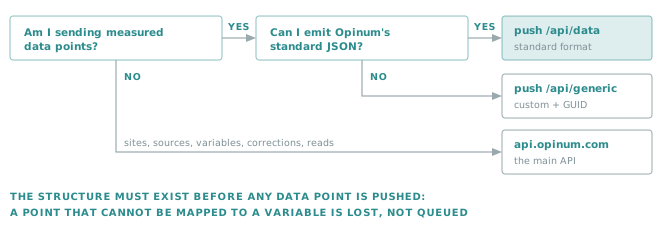
The Insights structure must exist before data is sent. A data point that cannot be mapped to an existing Site → Source → Variable is lost, not queued. See The entity chain.
Getting a token
Authentication follows the OAuth2 password grant: your application exchanges the four credentials above for a short-lived token, then presents that token on every subsequent call.
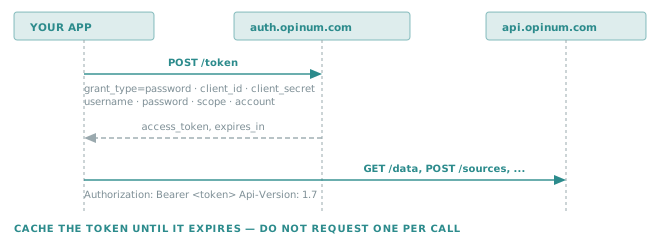
The token endpoint is:
https://auth.opinum.com/realms/opinum/protocol/openid-connect/token
The request
curl --location 'https://auth.opinum.com/realms/opinum/protocol/openid-connect/token' \
--header 'Content-Type: application/x-www-form-urlencoded' \
--data-urlencode 'grant_type=password' \
--data-urlencode 'client_id=MyClientId' \
--data-urlencode 'client_secret=MyClientSecret' \
--data-urlencode 'scope=datahub-api' \
--data-urlencode 'username=MyUsername' \
--data-urlencode 'password=MyPassword' \
--data-urlencode 'account=123'
| Field | Notes |
|---|---|
grant_type |
Always password. |
client_id, client_secret |
Your application credentials. |
username, password |
The Insights user the calls act as. |
scope |
Space-separated list — see Scopes below. |
account |
Optional. Selects which account the token is issued for, when the user has access to several. Omit it and the user's default account applies. |
Scopes
A scope is what makes a token usable against a given service. Ask for the ones your integration actually needs, separated by spaces.
| Scope | Grants access to |
|---|---|
datahub-api |
The main API on api.opinum.com. |
push-data |
The ingestion endpoints on push.opinum.com. |
dashboards-api |
Dashboard resources. |
geozones-api |
Geozone resources. |
odm-api |
Open Data Model resources. |
Note
A token requested with only datahub-api will be rejected by push.opinum.com. An integration that both
reads and pushes asks for scope=datahub-api push-data.
Using the token
Two headers travel on every call:
Authorization: Bearer <access_token>
Api-Version: 1.7
Api-Version is not optional in practice — see Selecting a version
for why pinning it matters.
Tip
The response also carries expires_in. Cache the token and reuse it until it is close to expiry; requesting
a fresh token before every call is the most common cause of self-inflicted throttling.
Example in Python
Using OAuthlib and Requests-OAuthlib:
from oauthlib.oauth2 import LegacyApplicationClient
from requests_oauthlib import OAuth2Session

TOKEN_URL = "https://auth.opinum.com/realms/opinum/protocol/openid-connect/token"

def get_datahub_token(username: str, password: str) -> str:
    """Request a bearer token valid for both the API and the push service."""
    client = LegacyApplicationClient(client_id="your_client_id")
    oauth = OAuth2Session(client=client)
    token = oauth.fetch_token(
        token_url=TOKEN_URL,
        client_id="your_client_id",
        client_secret="your_client_secret",
        scope=["datahub-api", "push-data"],
        username=username,
        password=password,
    )
    return "Bearer " + token["access_token"]
Data push principles
There are two ways to send data points through the Verity API:
- Standard format — you map the data into the Verity format, and no mapper is needed on our side.
- Custom format — you push your raw file as it is, and Verity maps it for you behind a dedicated GUID.
Tip
Learn more about the standard format and the custom format.
Verify the chain with Swagger
Before writing any code, confirm that the credentials, the scopes and the account all line up.
- Log in to Insights with the user that will be used by the integration.
- Open the Verity Swagger UI.
- Click Authorize at the top right of the page.
- Tick the scopes you need — at minimum
datahub-api— and click Authorize. - Close the confirmation pop-up. You are connected.
- Call
GET /siteswith no parameter. A list of your sites confirms the whole chain works. - To log out, click Authorize again, then Logout.
Tip
A call that succeeds in Swagger UI but fails from your own client is almost always one of three things: a
missing Api-Version header, a missing scope, or a token issued for a different account.
Troubleshooting
| Symptom | Most likely cause |
|---|---|
401 Unauthorized on the token endpoint |
Wrong client_id / client_secret, or wrong user credentials. |
401 on api.opinum.com with a valid token |
Missing datahub-api scope, or an expired token. |
401 on push.opinum.com with a token that works on the API |
Missing push-data scope. |
403 Forbidden |
The token is valid but the user lacks the right — for a push, check the Data Pusher access right. |
| Empty results where the interface shows data | The token was issued for another account. Set the account parameter on the token request. |
| Behaviour changed without any deployment on your side | The Api-Version header is missing, so the call followed a newly released version. |